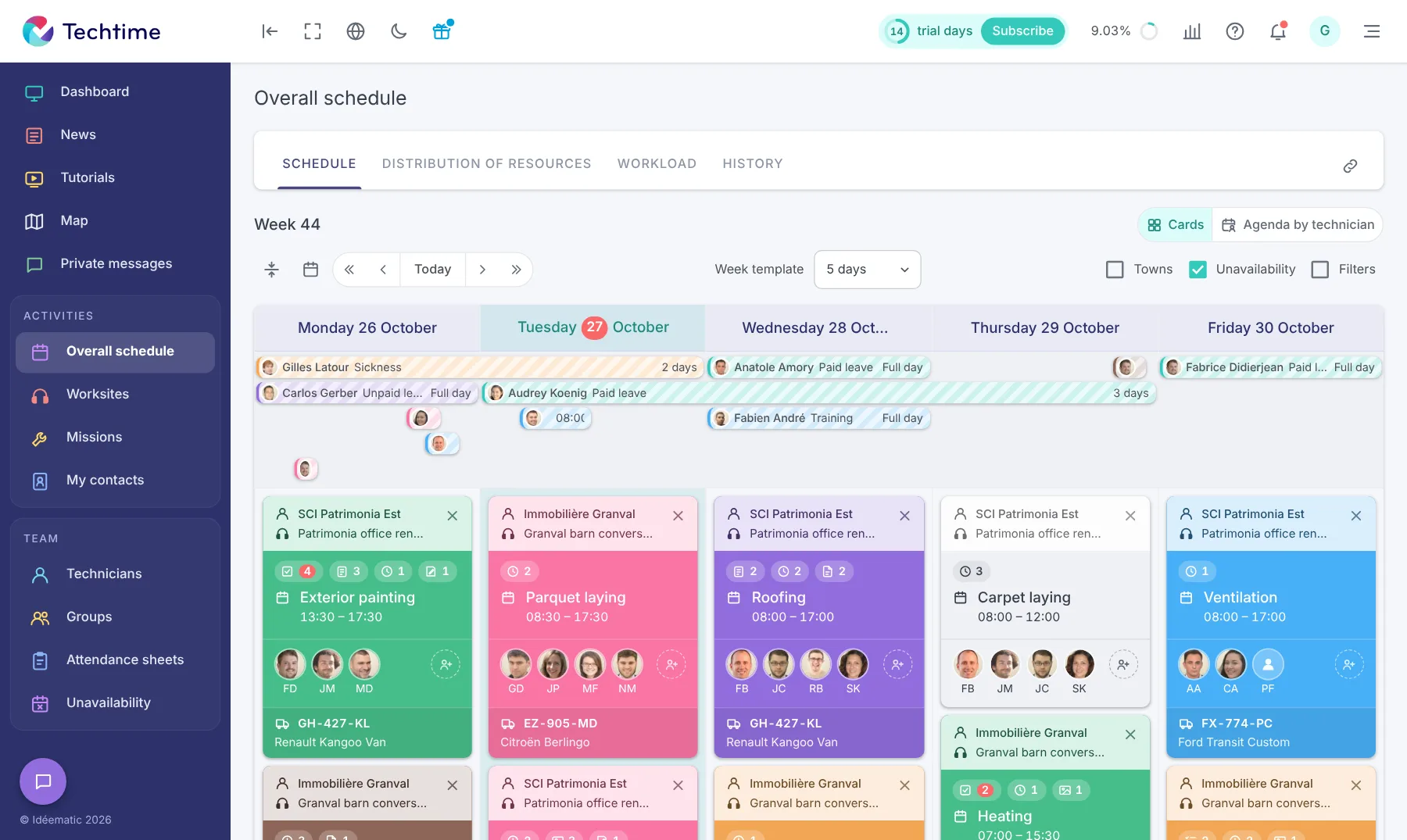
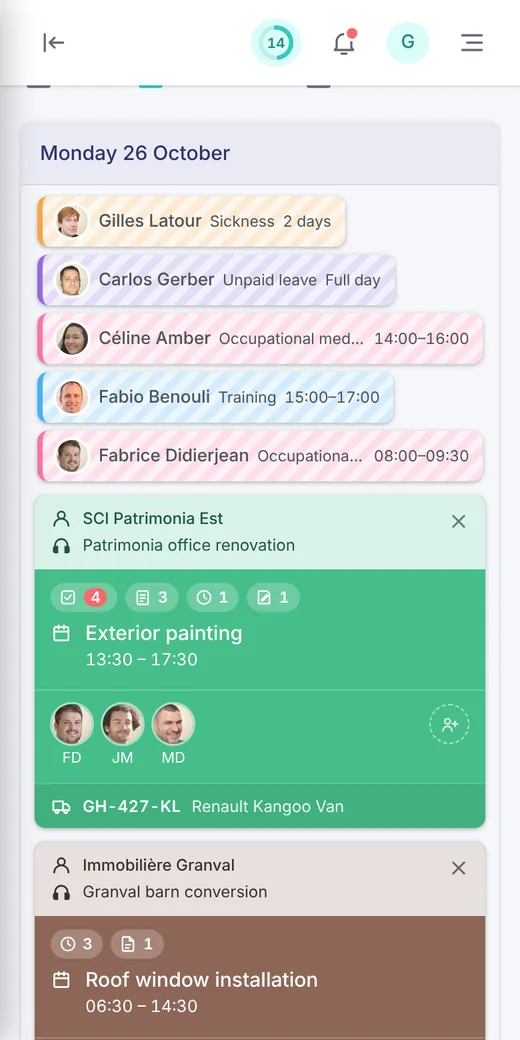
A day on site often ends with a phone call, a message or a note scribbled in a notebook. Yet this information is valuable: what was done, what caused problems, what the customer asked for. With Techtime, every scheduled activity can have its own report, written on site by the technician.
The report is linked to the activity, and therefore to the relevant customer and worksite. The office has nothing to re-key: it finds the report in the activity record and in the worksite history.
What a Techtime report contains
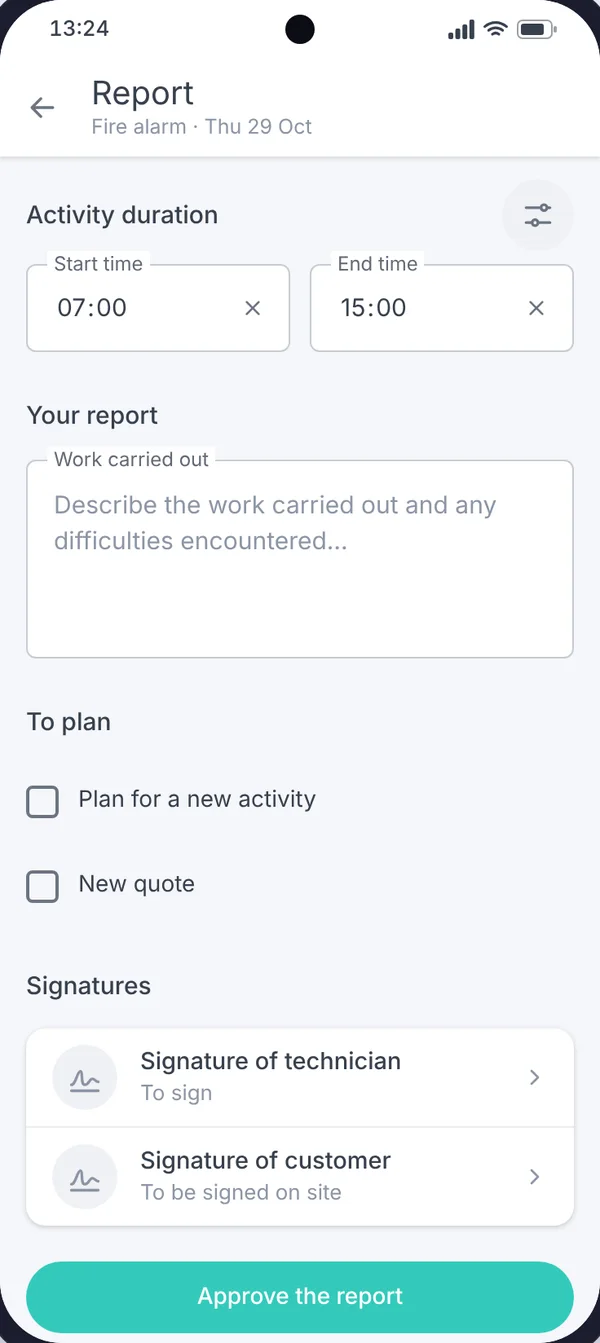
From the “Report” tab in the mobile app, the technician fills in within a few minutes:
the duration of the activity, with start and end times;
the work done and any difficulties encountered;
the points to plan: a new activity to schedule or a new quote requested by the customer;
the technician’s signature;
the customer’s signature, collected on site.
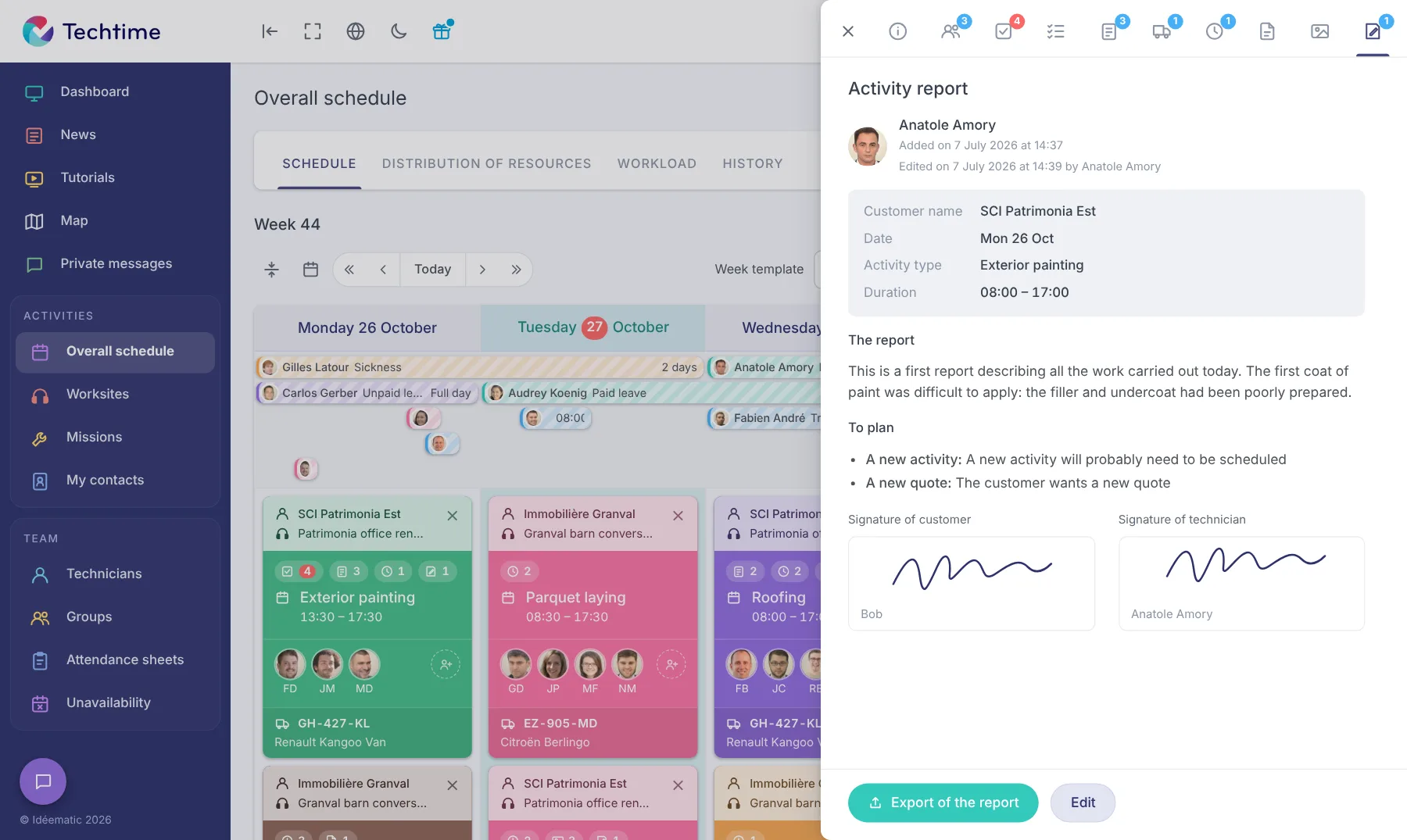
The customer’s name, the date and the type of activity are filled in automatically from the schedule.
The technician opens the day’s activity, then the “Report” tab. They enter the duration of the activity, describe the work done and tick the points to plan.
The customer signs directly on the phone screen, and so does the technician. The signed report is saved with the activity: no more paper job sheets to collect at the end of the week.
app.techtime.fr/chantiers/historique
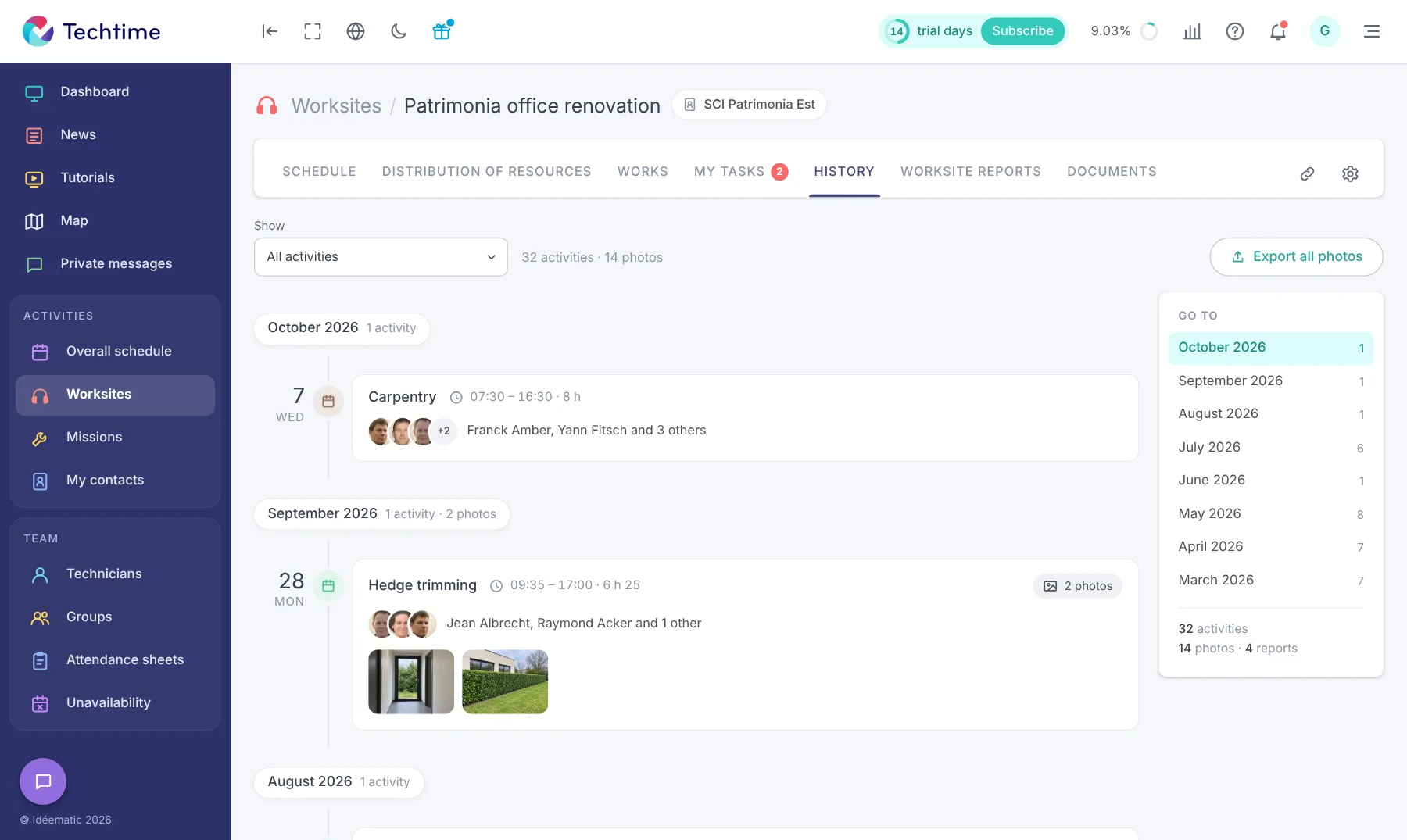
All reports in the worksite history
In the web app, each report opens from the activity record or the worksite history, together with the photos taken the same day.
The report can be exported to send to the customer or to archive with the worksite documents.
Free trial
Sign up in under 47 seconds
No commitment, and you gain your superpowers: 14 days to try Techtime with your teams.
With your consent, we use audience measurement cookies (Google Analytics) and marketing cookies (Brevo, notifications) to improve the site and our communications. They are only set if you accept them. You can change your mind at any time using the “Manage cookies” link at the bottom of the page.