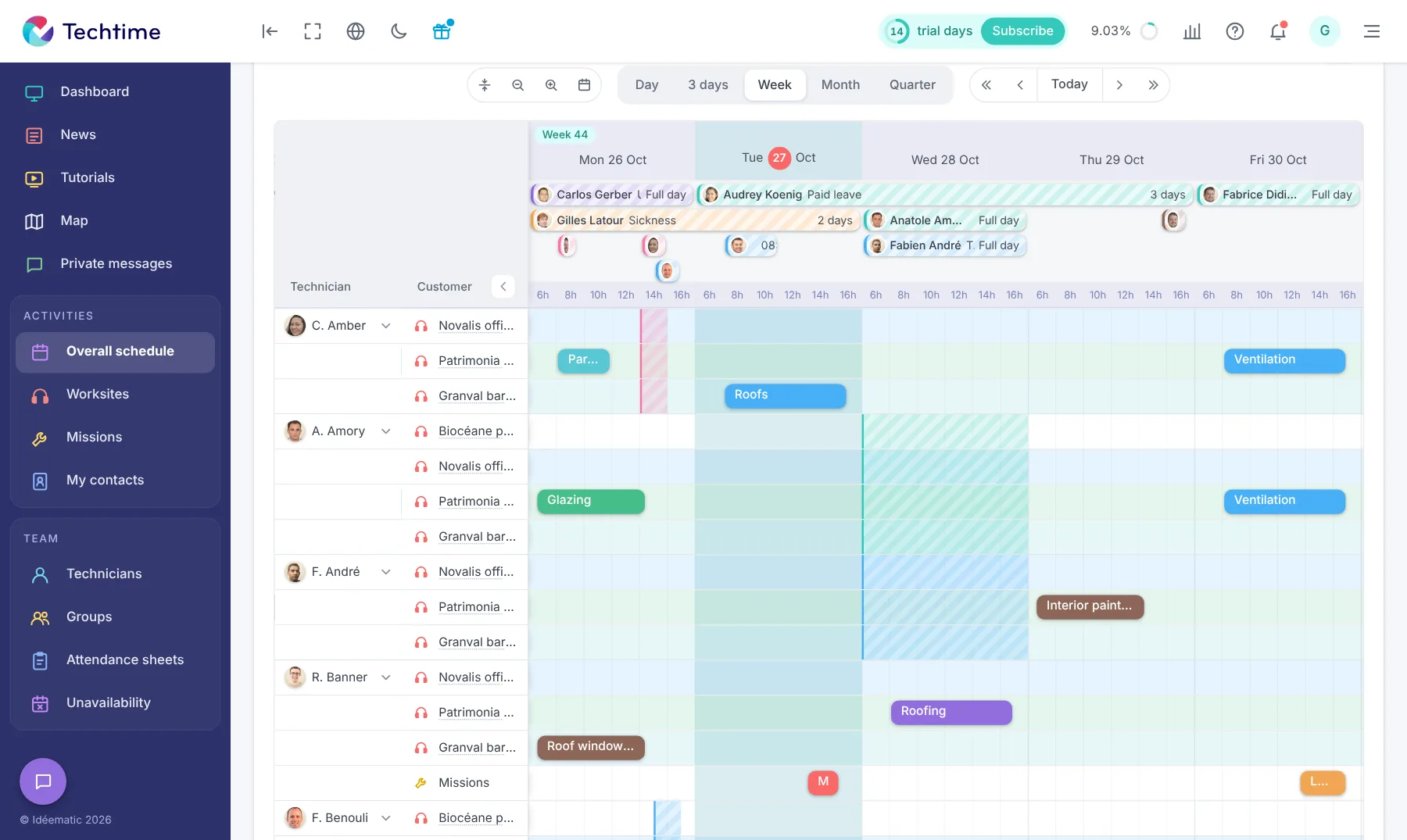
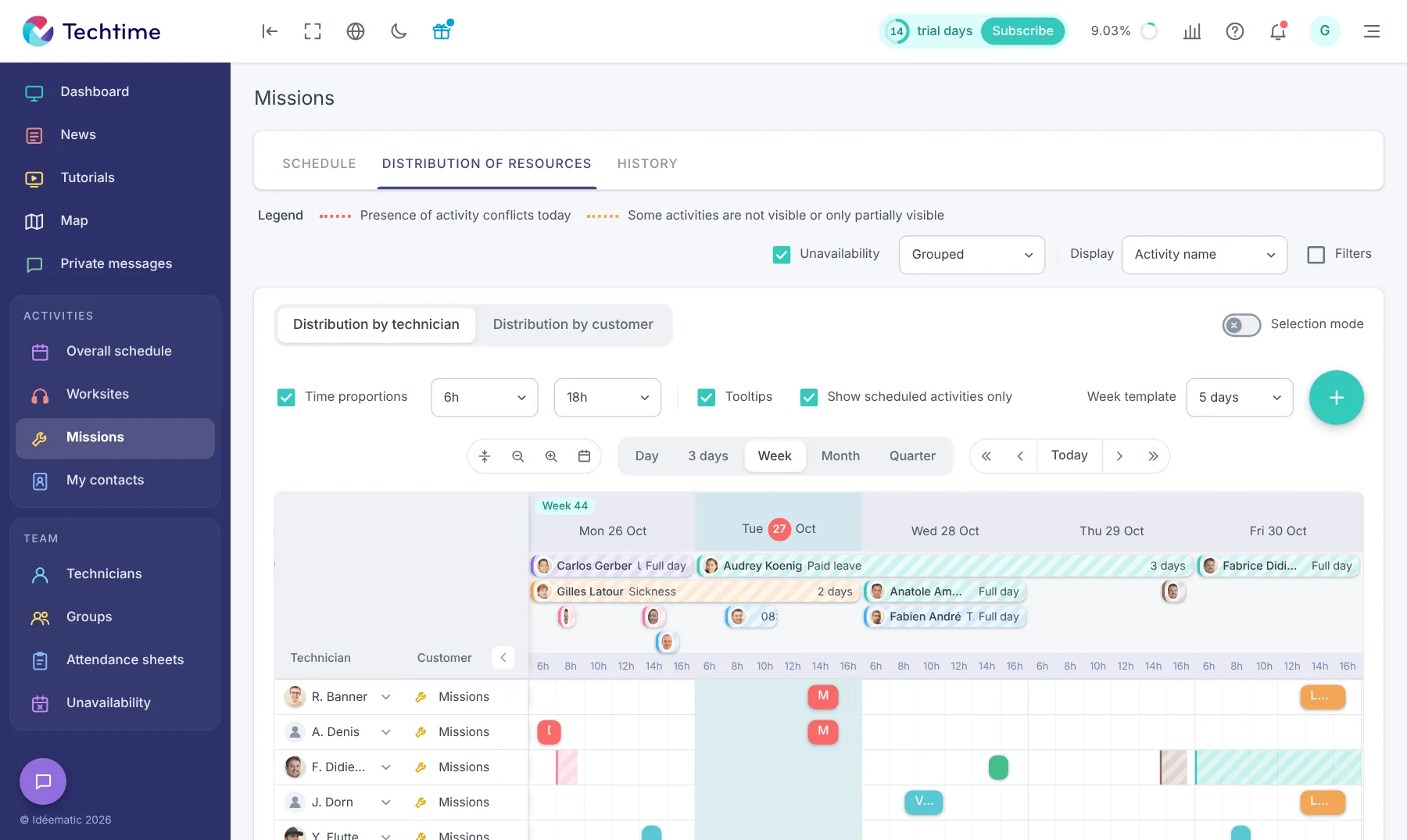
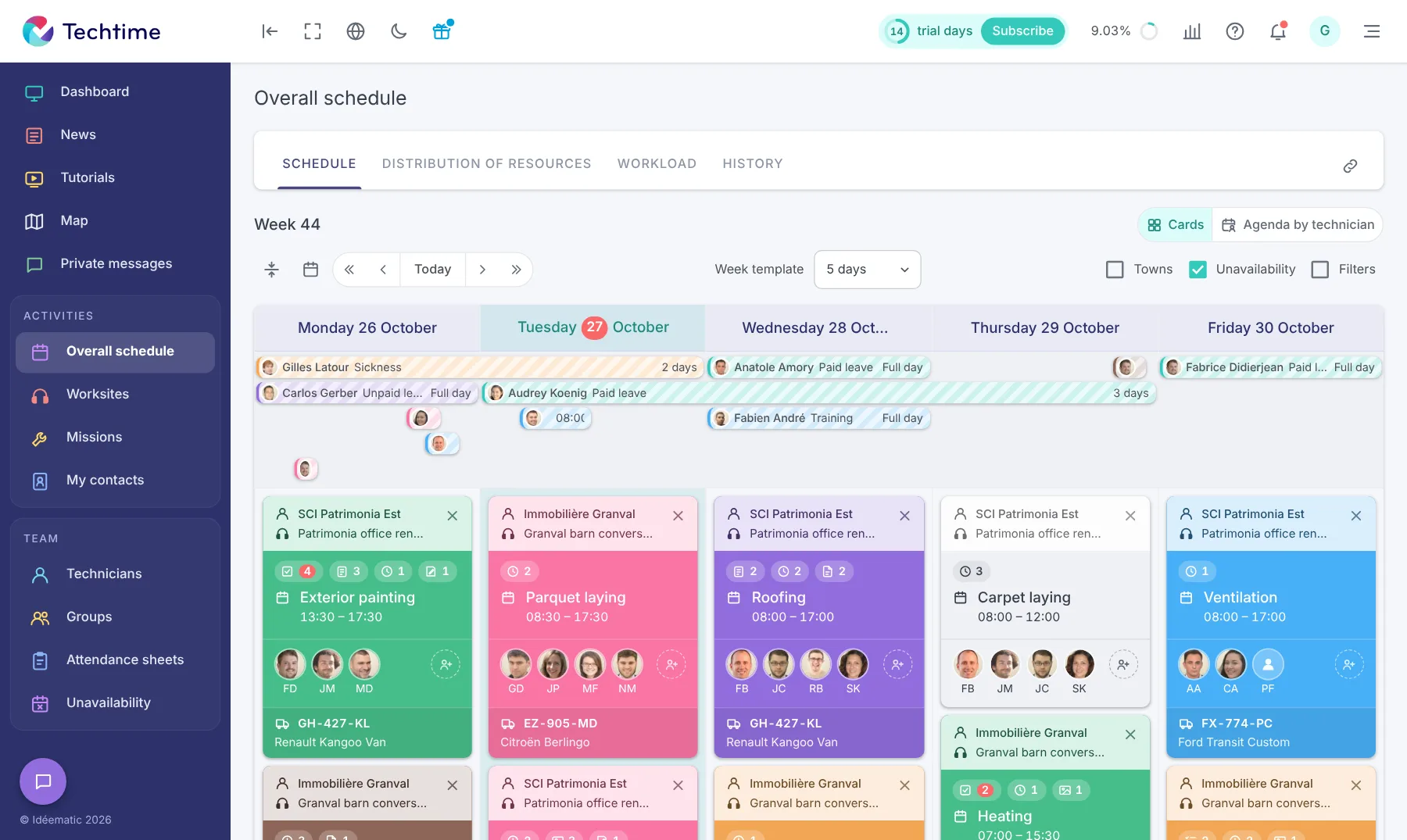
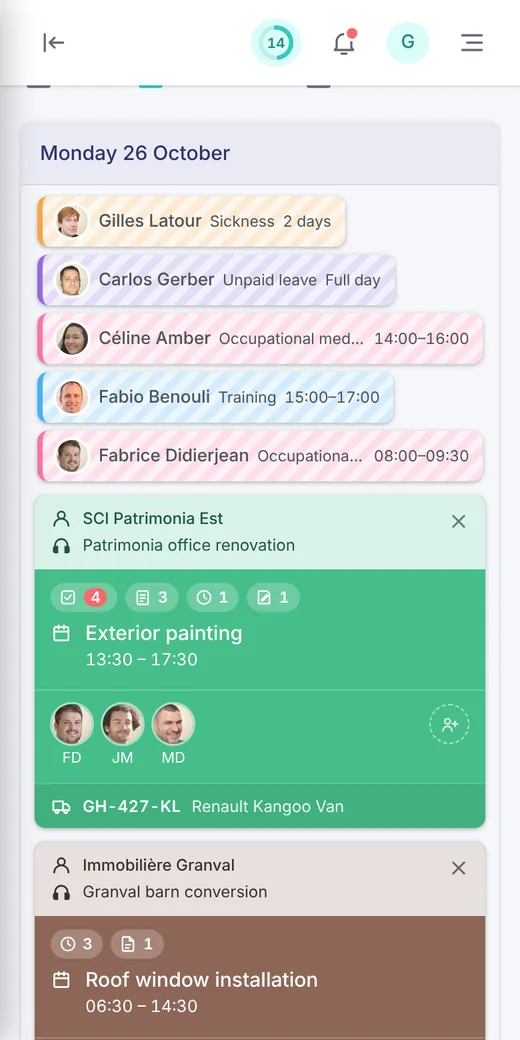
1By technician or by customertwo views of the same week
2From a day to a quarterday, 3 days, week, month
3Conflicts flaggedoverlapping activities
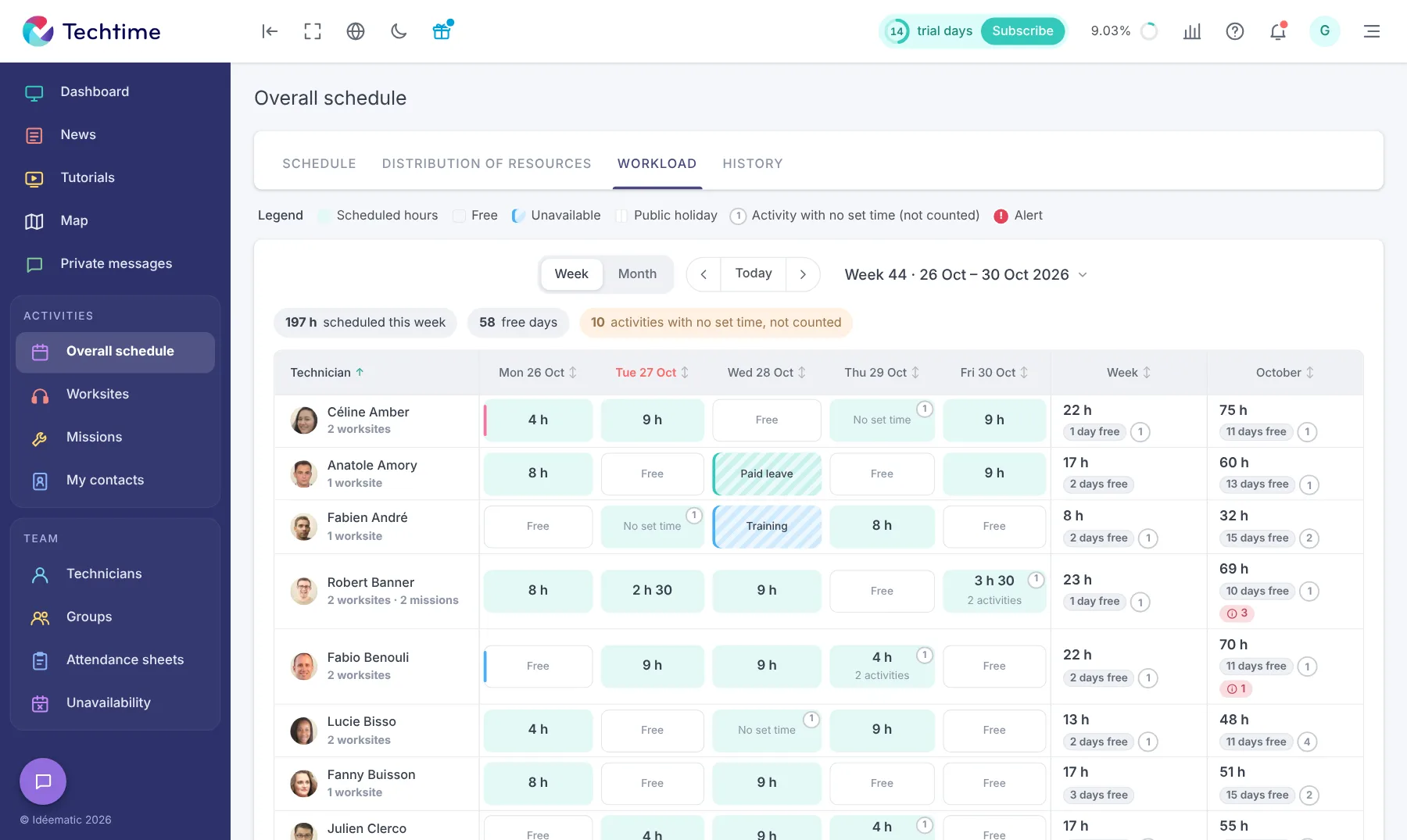
4Workloadscheduled hours and free days
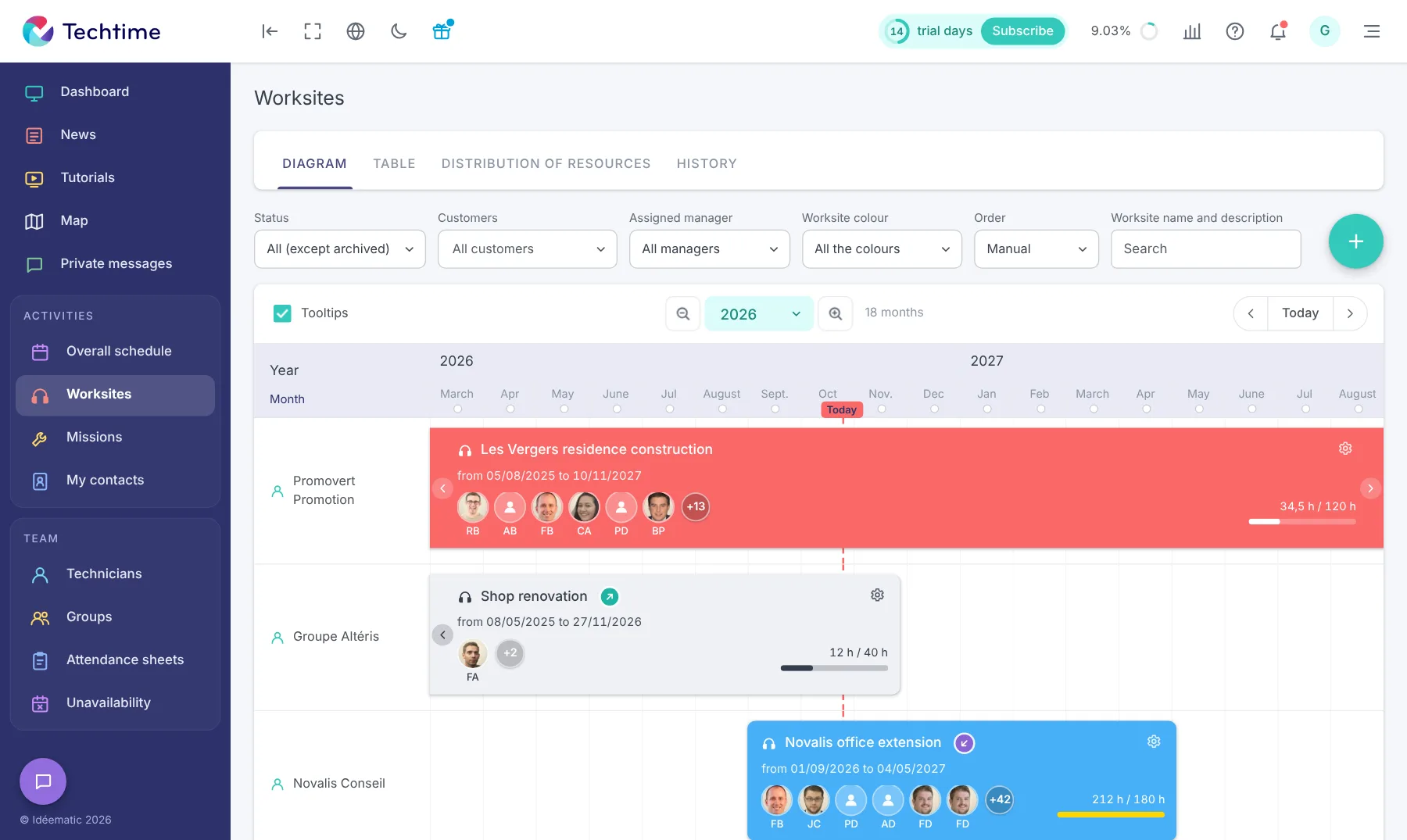
See the staff deployed on your worksites
The schedule answers the question “what are we doing?”. Resource allocation answers another: “who is busy, and who is available?”. It shows each technician on a timeline, with the activities assigned to them, hour by hour.
At a glance you spot an overloaded technician, another who is free, an activity assigned twice at the same time, and you adjust assignments accordingly.
What resource allocation shows
The “Resource allocation” tab is available in the overall schedule, in worksites and in missions. It shows:
one row per technician, with their activities placed across the chosen time range (from 6 am to 6 pm, for example);
or a view by customer, to see who is working where;
days with overlapping activities, flagged with a marker;
The “Workload” view totals the hours scheduled over the week and the month for each technician, along with the number of free days.
You know immediately who to give a new activity to, without overloading the same people.
app.techtime.fr/interventions/repartition
Worksites and missions, the same view
Resource allocation is available for worksites and for missions alike. Your repair and maintenance teams are managed with the same view as your worksite teams.
Tooltips show the details of each activity on hover: customer, worksite, times and assigned team.
Free trial
Sign up in under 47 seconds
No commitment, and you gain your superpowers: 14 days to try Techtime with your teams.
With your consent, we use audience measurement cookies (Google Analytics) and marketing cookies (Brevo, notifications) to improve the site and our communications. They are only set if you accept them. You can change your mind at any time using the “Manage cookies” link at the bottom of the page.