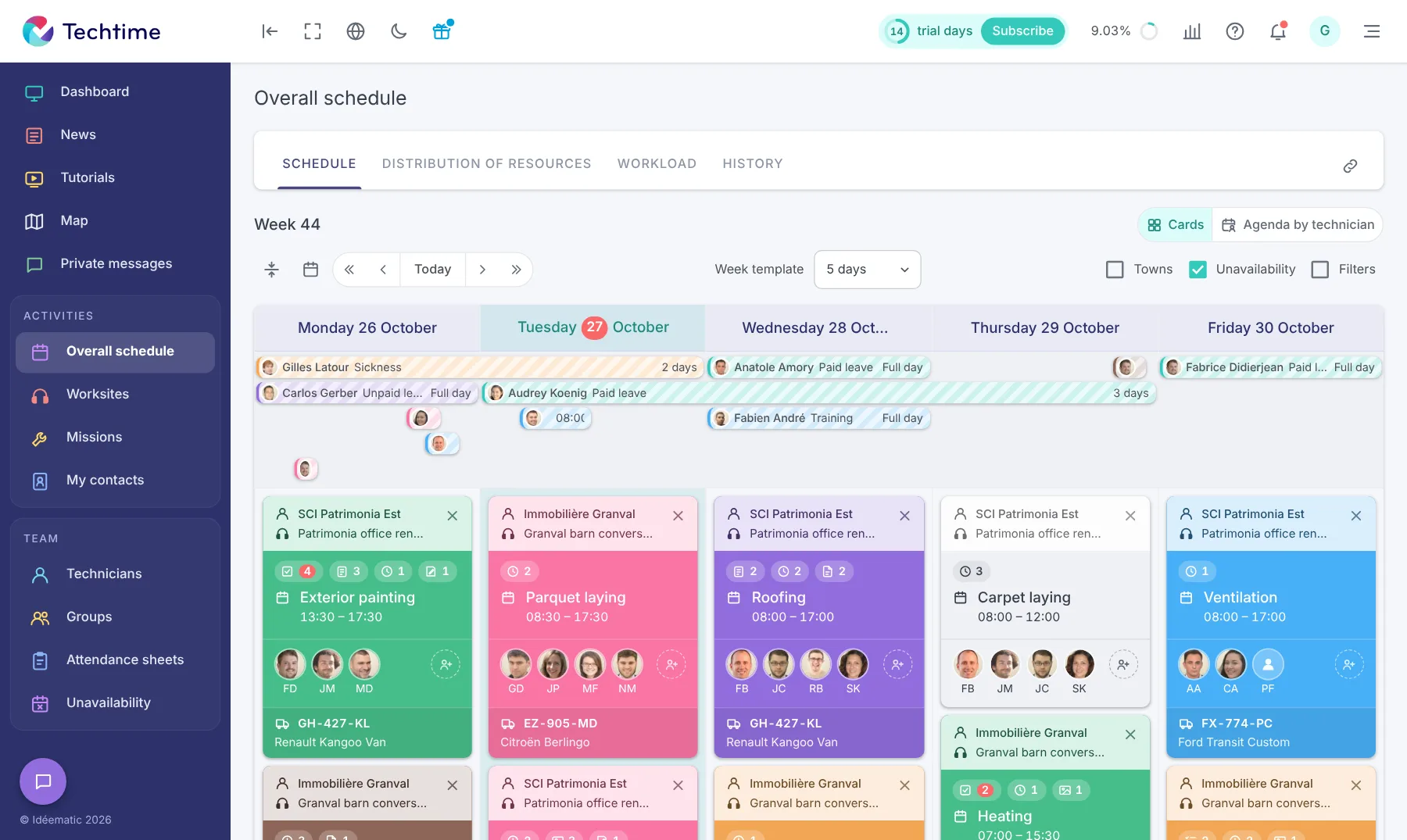
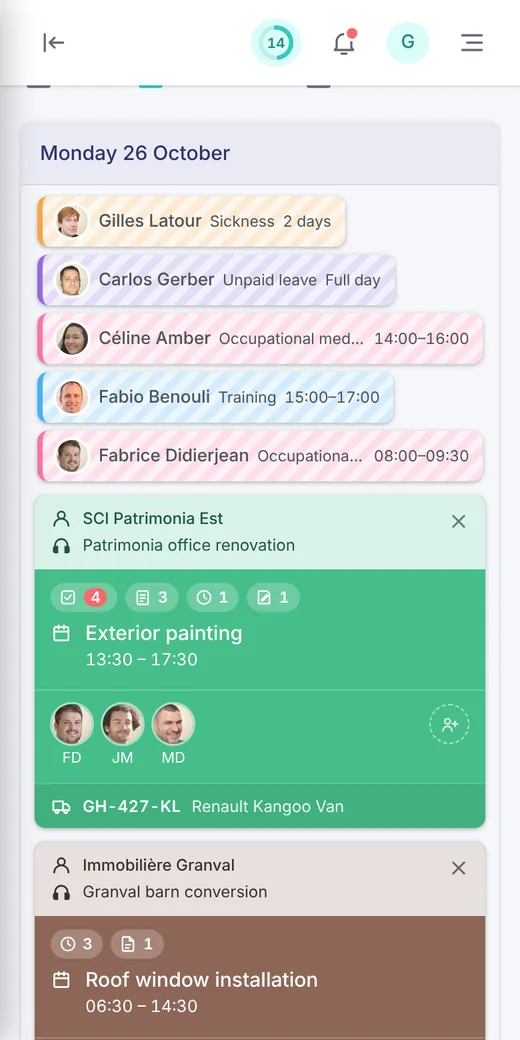
A photo is often worth more than a long explanation: a room before work starts, a duct to be redone, a finished surface. But you still need to find the right photo at the right time, not in a technician’s personal gallery.
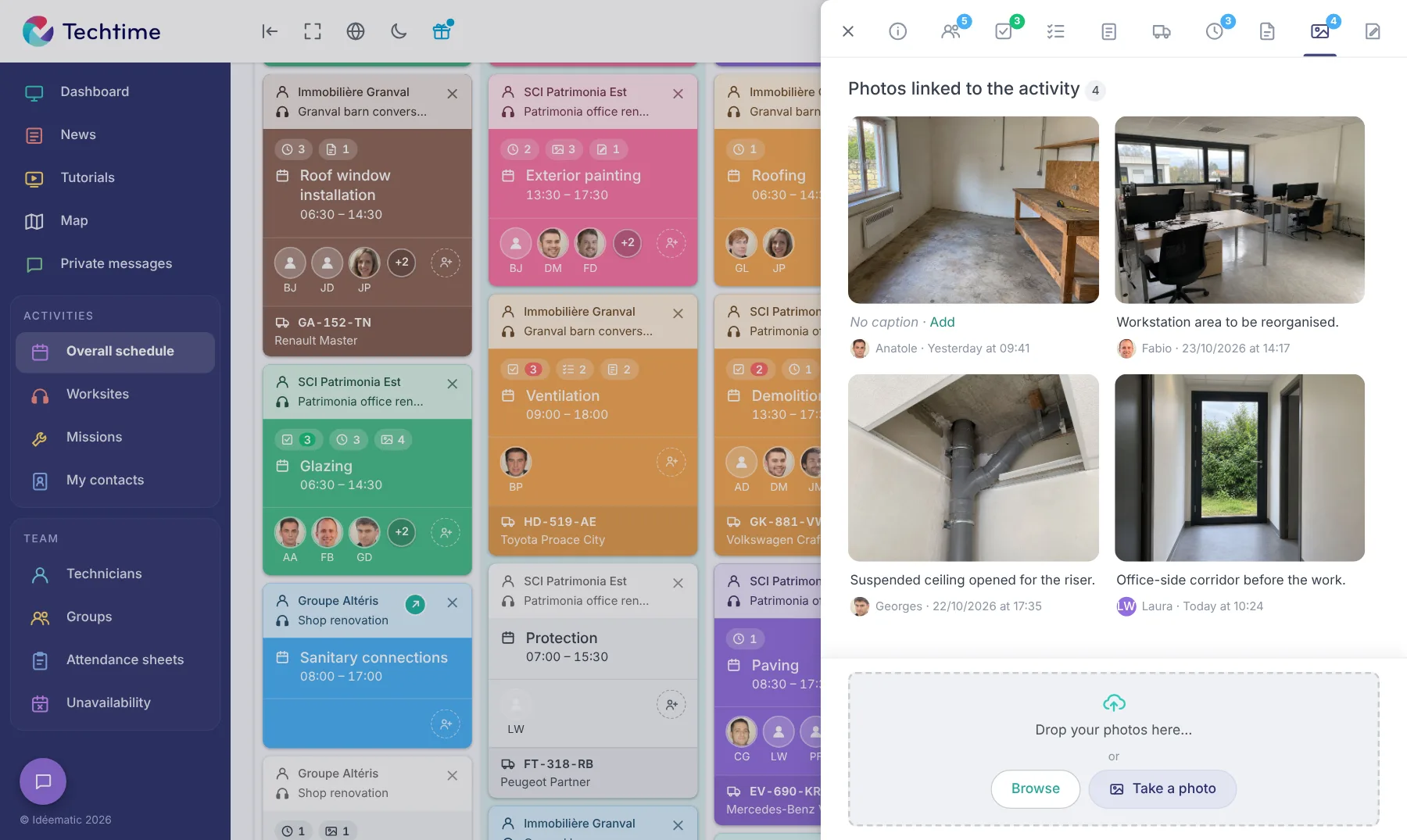
In Techtime, photos are taken from the current activity. They are automatically linked to the customer, the worksite and the activity, and become accessible to the whole authorised team.
Every photo arrives with its context
For each worksite photo, Techtime keeps:
the photo itself, taken with the phone or imported;
its caption, added by the technician;
its author and the date and time it was taken;
the activity, worksite and customer it relates to.
From the web app, you can also drag and drop photos into an activity’s “Photos” tab.
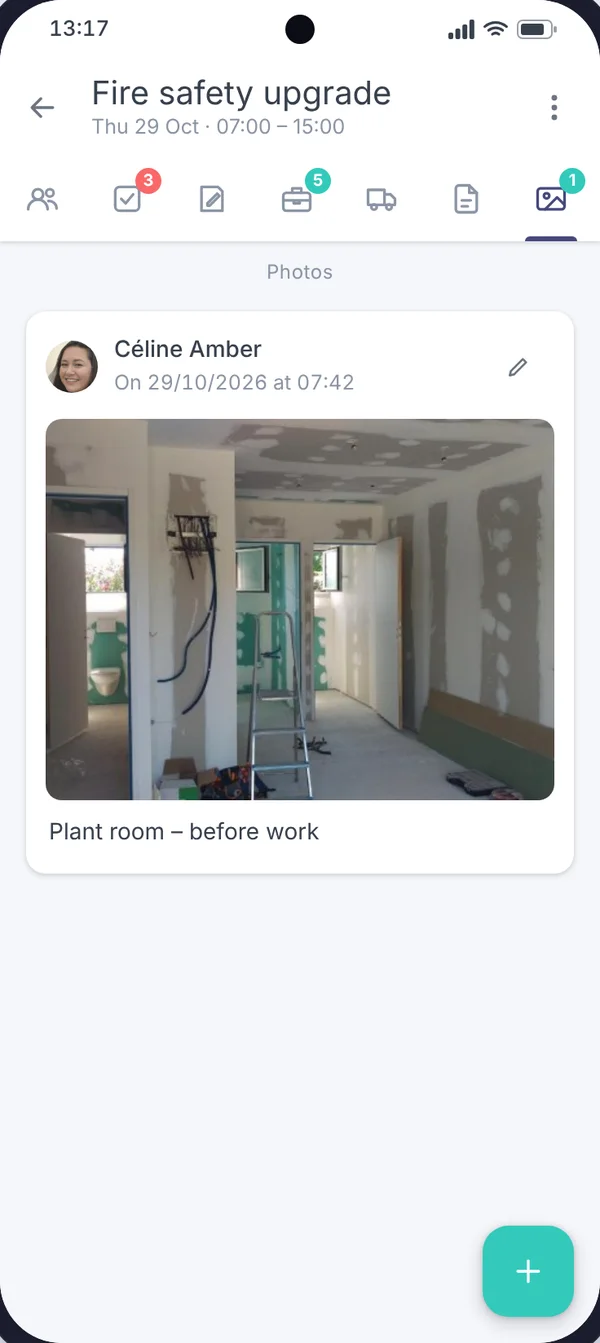
The technician opens the day’s activity and its “Photos” tab. They take the photo, add a caption if needed, for example “Plant room – before work”, and save it.
The photo is immediately available in the web app, with the technician’s name and the time it was taken.
app.techtime.fr/chantiers/historique
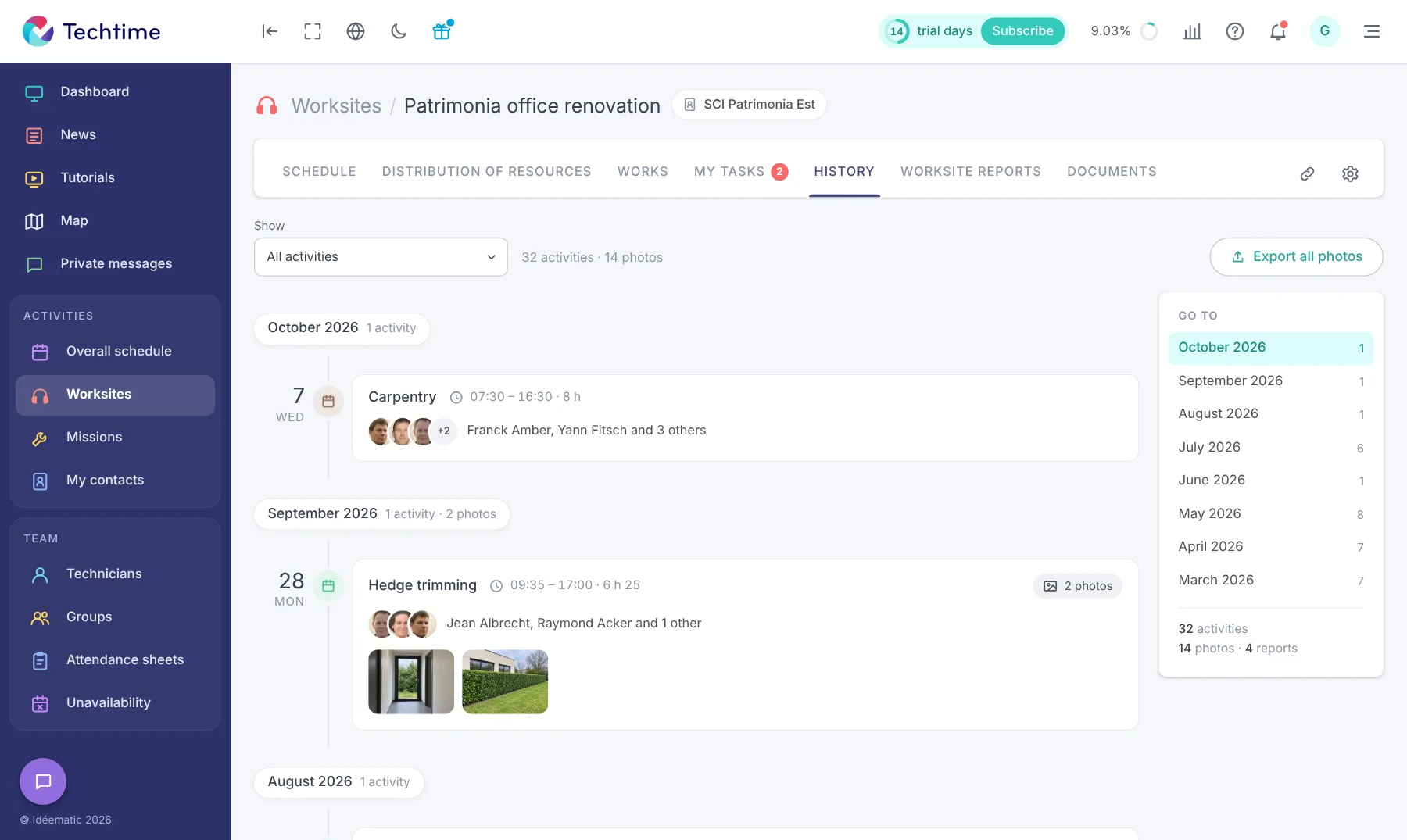
Find photos in the worksite history
In the office, photos can be viewed in the activity record or in the worksite history, sorted by date.
You can filter the history by activity and export all of a worksite’s photos in one click.
Free trial
Sign up in under 47 seconds
No commitment, and you gain your superpowers: 14 days to try Techtime with your teams.
With your consent, we use audience measurement cookies (Google Analytics) and marketing cookies (Brevo, notifications) to improve the site and our communications. They are only set if you accept them. You can change your mind at any time using the “Manage cookies” link at the bottom of the page.