


A technician off sick, a customer who reschedules, an emergency call at 9 am: in a field service business, the schedule is never set in stone. A good schedule is therefore not one that never changes, but one you can adjust quickly without breaking everything. Here are seven methods used by businesses that juggle call-outs, maintenance visits and worksites to organise their technicians’ schedule with peace of mind.
In brief
An effective technician schedule rests on seven habits: assign jobs according to skills and certifications, keep availability and absences up to date, group jobs by area, keep slack for the unexpected, manage workload and not just appointments, give technicians all the information on their phone, and compare planned and actual time every week. Beyond a handful of jobs a week, software shared between the office and the field is a far better option than an Excel spreadsheet.
Why the technician schedule is so hard to keep on track
Scheduling jobs means constantly matching four things that change all the time: customer requests, technician availability, their skills and the distances between addresses. Add holidays, training, parts on back order and jobs that take longer than expected, and Monday’s schedule bears little resemblance to Friday’s.
If you mainly run worksites lasting several days, our guide to managing your team’s schedule on a worksite is a better fit. The methods below are aimed at businesses that handle many short jobs, on their own or alongside worksites.
1Assign jobs according to skills and certifications
The first question is not “who is free?” but “who can do it?”. Work on an electrical panel requires the right electrical certification, work at height requires specific training, and repairing a gas boiler requires a particular qualification. Sending the wrong profile means planning a second visit.
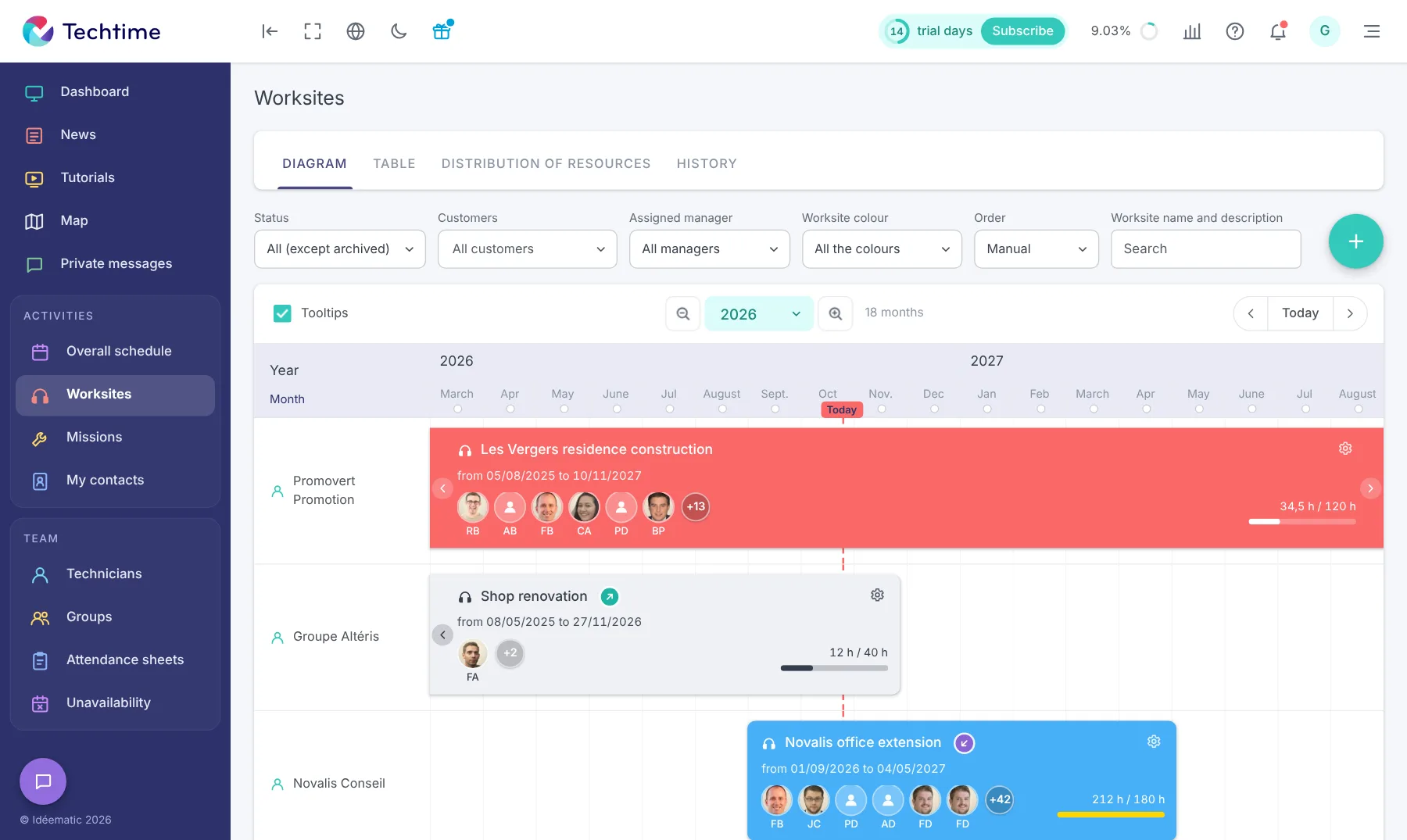
Organise your technicians into groups (by trade, by team, by level) and keep their certifications and documents close at hand. In Techtime, technicians can be grouped together with their site supervisor, and useful documents (welcome booklet, procedures, certifications) are shared with them in the app.
2Keep availability and absences up to date
A schedule that is wrong at the source can never be right. Holidays, training, sick leave and part-time hours must be visible at the very moment you schedule, not discovered on the morning of the job.
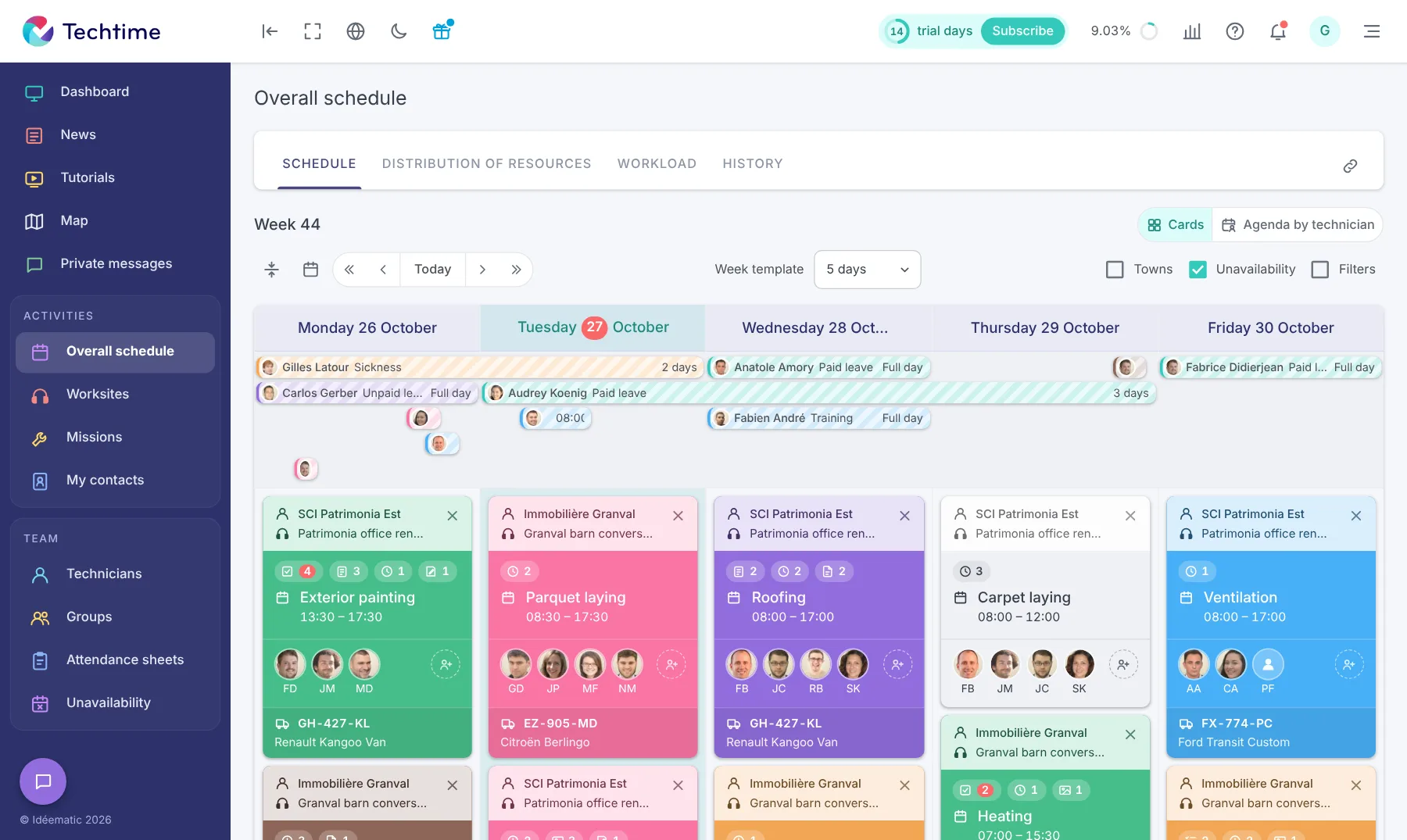
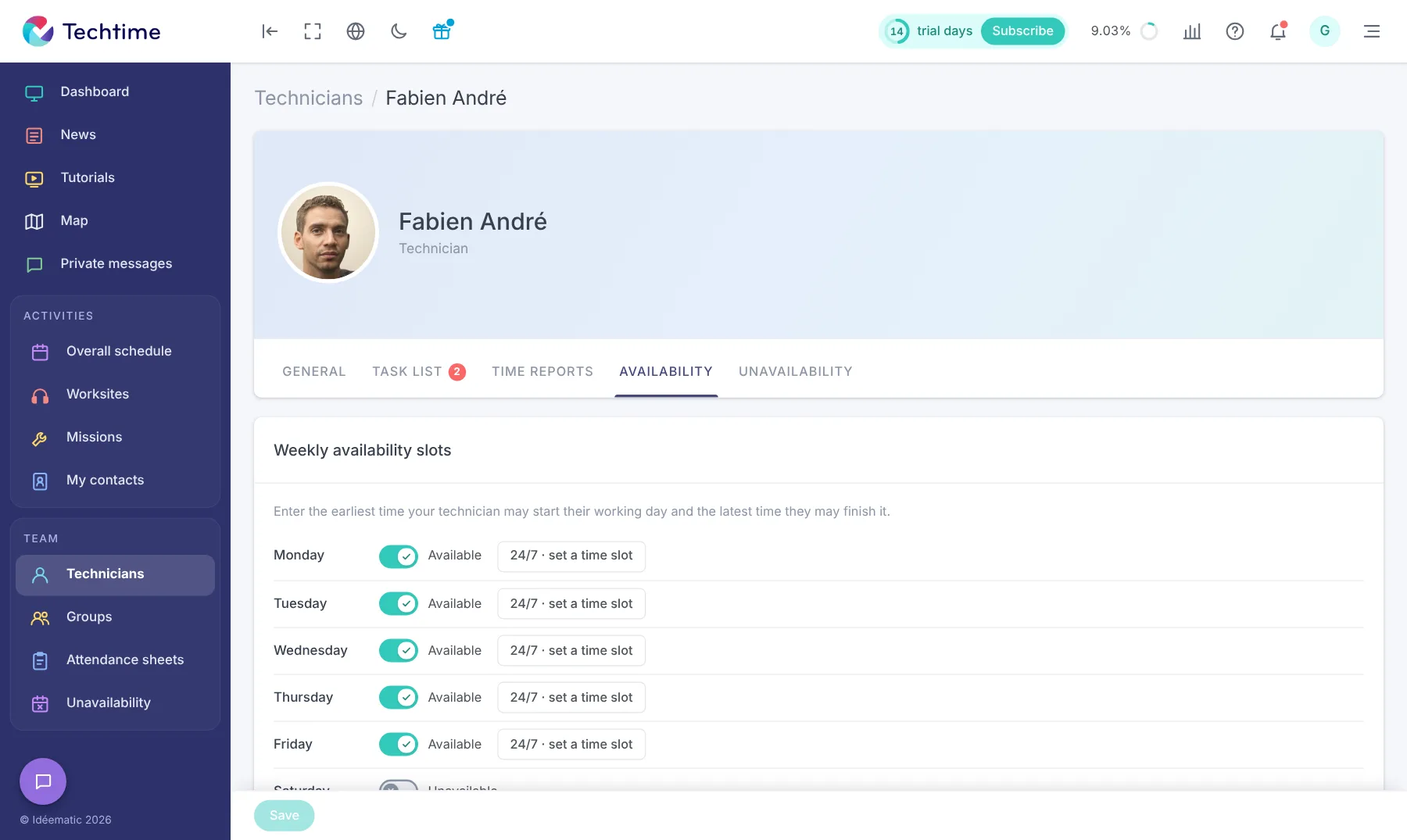
Define each technician’s usual availability slots (for example, no jobs on Saturdays) and enter absences as soon as they are known. In Techtime, each technician profile includes weekly availability slots and unavailability periods, which appear directly in the schedule.
3Group jobs by area
Every journey is unbilled time. Grouping jobs in the same area into the same half-day, and giving each technician a stable area whenever possible, cuts mileage and fatigue. Technicians also get to know their customers and their installations better.
A map showing jobs, technicians and customer addresses together helps you make these decisions at a glance. It is one of the views Techtime offers for organising travel.
4Keep slack for the unexpected
A schedule filled to 100% falls apart at the first emergency. Businesses that do a lot of call-outs keep free slots every day, or take turns designating a “floating” technician who absorbs emergencies and delays.
Be honest when estimating durations, too: allow for travel, diagnosis and tidying up, not just the actual working time. We go into these rules in our article on managing emergencies and call-outs.
5Manage workload, not just appointments
A calendar shows who is where. It does not show who is overloaded and who has room. A workload view, in scheduled hours per technician and per day, lets you balance the week before one technician works ten-hour days in a row while another is waiting.
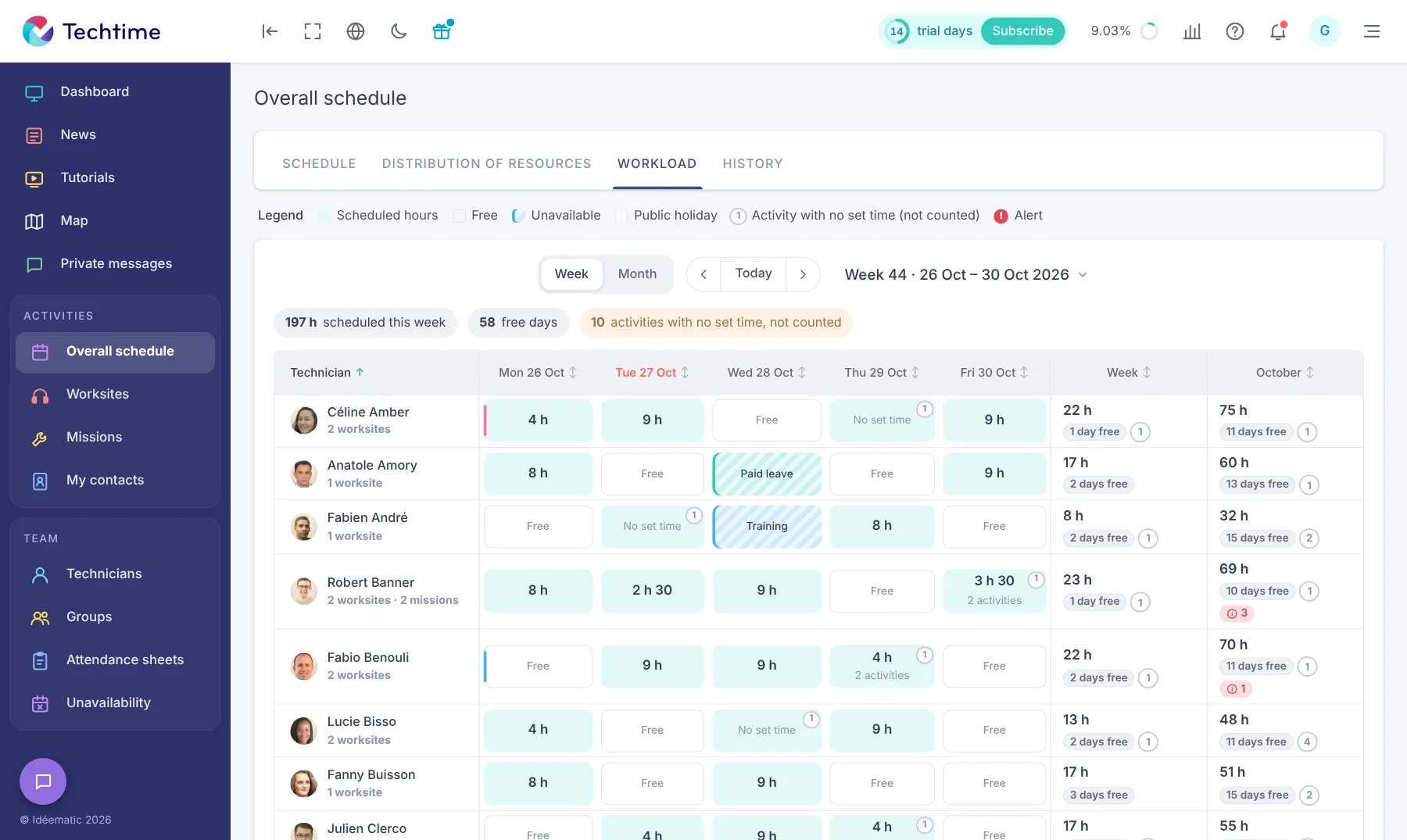
In Techtime, the overall schedule offers several complementary views: the schedule itself, the allocation of resources across jobs, each technician’s workload over the week or month, and a history. The calendar per technician gives the detail of each day.
6Give technicians everything they need, on their phone
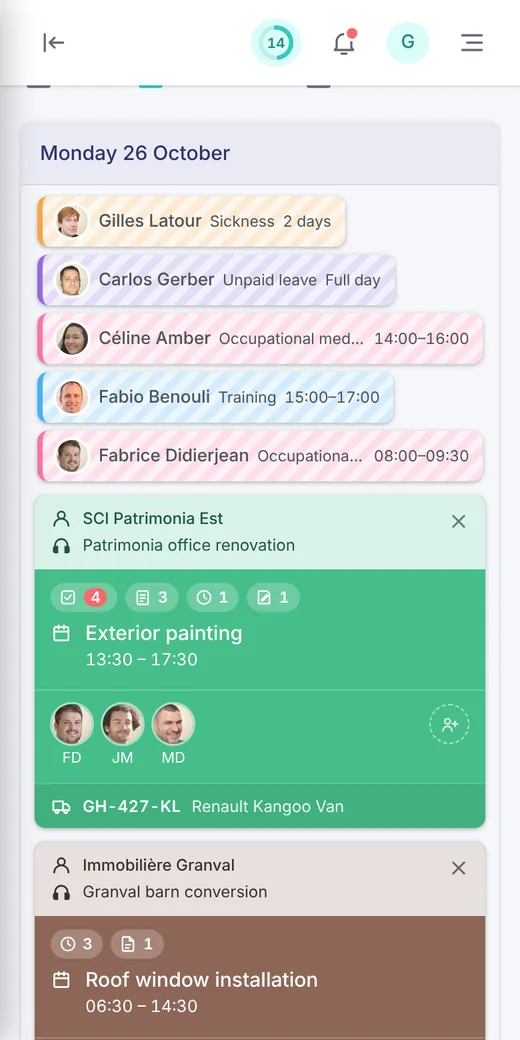
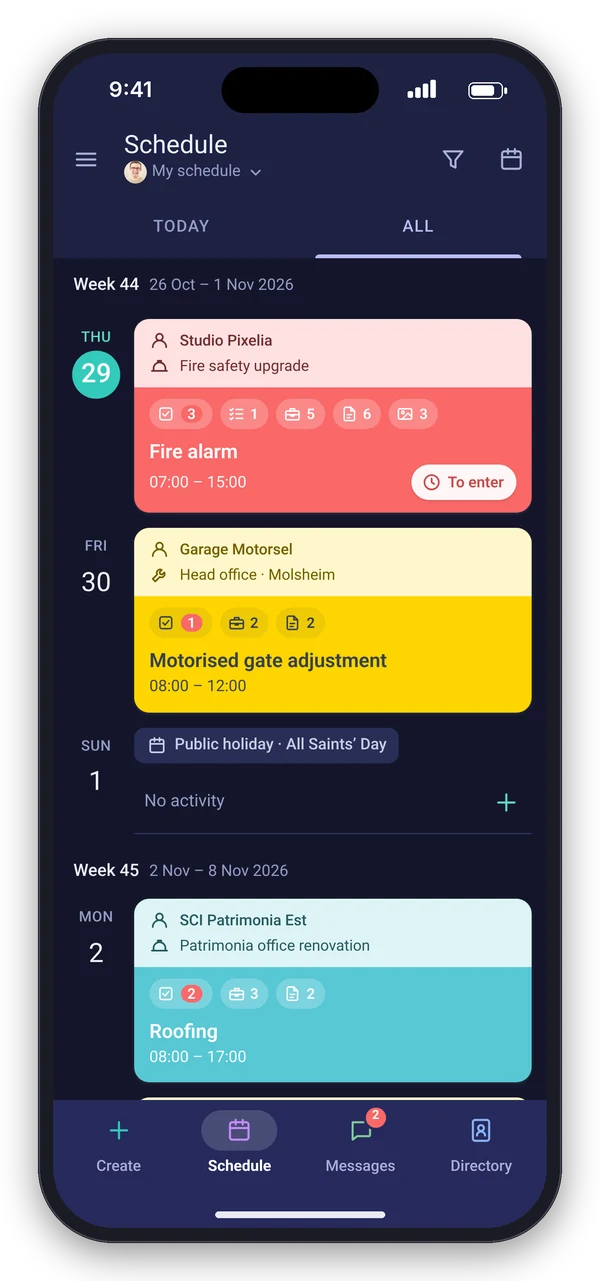
The best schedule is useless if the technician has to call the office three times a day for an address, an access code or the name of the contact. Every job must arrive complete: customer, address, times, work to be done, tasks, instructions, plans, photos, planned equipment and vehicle.
With the Techtime mobile app, technicians find their schedule and all this information on their phone. When the office changes their schedule, they are alerted by a notification, with no catch-up calls or texts.
7Compare planned and actual time every week
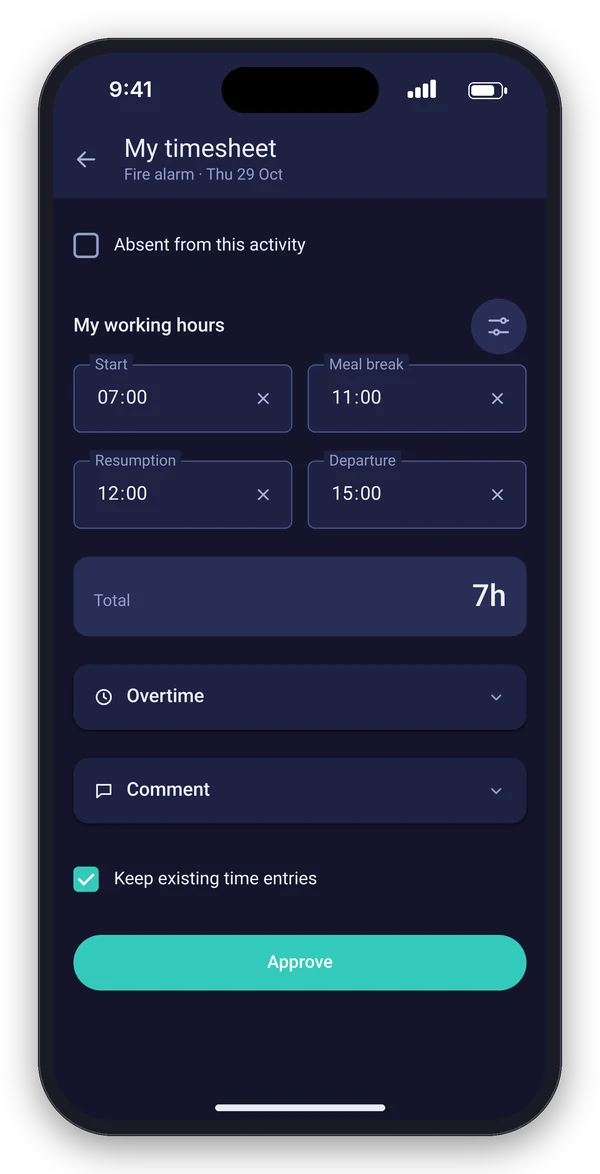
How long do your water heater replacements, compliance upgrades or annual servicing visits really take? Only comparing scheduled hours with recorded hours will tell you. That is what lets you estimate accurately next time, price quotes correctly and spot jobs that overrun.
In Techtime, technicians record their hours from the app; the office compares scheduled and recorded hours, approves timesheets and exports time spent to prepare payroll.
- Free and familiar to everyone
- Manual updates, one version at a time
- Nothing on the technician’s phone
- No feedback from the field
- Schedule shared in real time
- Absences and workload visible while scheduling
- Complete jobs on mobile
- Hours, photos and reports sent back
Excel remains a good solution for a few jobs a week. Beyond that, job scheduling software avoids double entry and shares the schedule with the field in real time, linking each job to its documents, photos and hours.
Field feedback: Techniques Électriques
An industrial and commercial electrical contractor based in Erstein, Alsace, Techniques Électriques has more than 40 employees and handles both same-day emergency call-outs and worksites lasting several months. “Our business demands a lot of responsiveness to handle schedule changes every day,” explains its managing director, Fanny Houzelot. Before Techtime, schedules were kept in Excel and hours on paper, with a lot of re-keying and no overall view of absences and worksites. Today, every technician checks their schedule and records their hours in the mobile app. Read the Techniques Électriques case study.
Key takeaways: the 7 methods
- Assign jobs according to skills and certifications.
- Keep availability and absences up to date.
- Group jobs by area.
- Keep slack for the unexpected.
- Manage workload, not just appointments.
- Give technicians everything they need on their phone.
- Compare planned and actual time every week.
FAQ
How do you build a technician schedule?
Start from each technician’s skills and availability, group jobs by area, keep slots free for emergencies and check the week’s workload. Then send each job, complete, to the technician’s phone and compare planned and actual time every week.
Can you schedule technicians in Excel?
Yes, for a few jobs a week. Beyond that, manual updates, the lack of real-time sharing with the field and re-keying feedback become costly: scheduling software then takes over.
How do you let a technician know about a schedule change?
With a shared mobile app, technicians always see their up-to-date schedule. In Techtime, they receive a notification when their schedule is changed.
How do you handle absences in the schedule?
Enter holidays, training and sick leave as soon as they are known, in the same tool as the schedule. That way, when you assign a job, you immediately see who is available.
Article published in November 2026.